How I Let IObit Malware Fighter’s Behavior Guard Judge a Suspicious App for Me

When I downloaded a free screen recording tool for a tutorial, the installer seemed safe. The website looked trustworthy. But as the setup started, something felt very wrong. There was a strange pause, followed by a flicker on the screen, and my PC’s fans started making a loud noise.
Windows Defender didn’t say anything, but I noticed a new process in Task Manager that briefly maxed out my CPU. Instead of trying to play IT detective and figure out if I’d just let a piece of malware onto my machine, I decided to hand the judgment over to the pros: IObit Malware Fighter and its Behavior Guard.
Table of Contents
What is IObit Malware Fighter and Behavior Guard?
According to the official description, IObit Malware Fighter combines its own anti‑malware engine with an anti‑ransomware engine and, in the Pro version, the Bitdefender engine, to detect viruses, ransomware, spyware, Trojans, adware, and worms in real time.
Inside that system, Behavior Guard is one of the security guards that focuses on how programs act, not just what their files look like. It warns you of potential threats or suspected viruses in advance based on behavior analysis, and can prevent suspicious threats before they fully execute.
Usually, the defender is great at catching known signatures. But I wanted Behavior Guard to watch for weird actions, especially from new apps I was testing.
Setting Up IObit Malware Fighter for the Test
Before I intentionally ran a questionable installer, I made sure IObit Malware Fighter was ready to react.
- Install and update
I downloaded the latest IObit Malware Fighter 13 Free from the official site and let it update its malware database. - Enable real-time protection and guards.
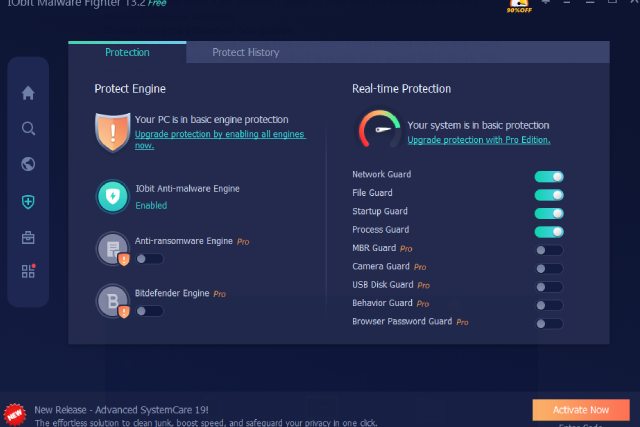
In the main interface, I turned on real-time protection. I then checked the Security Guard panel to confirm Behavior Guard was enabled alongside other guards like Network, File, and Startup.
3. Baseline scan
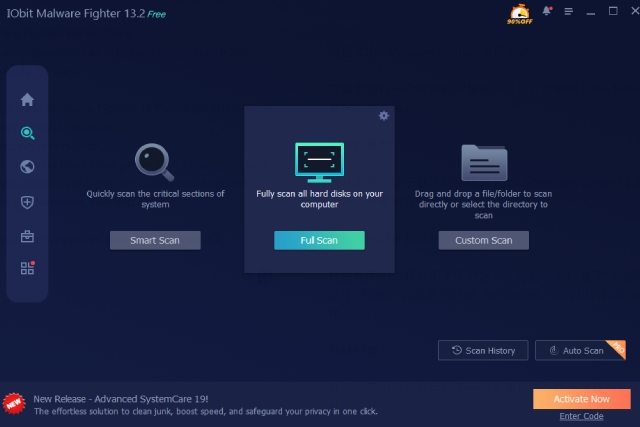
I ran a full scan to make sure my system was clean before the experiment.
The Suspicious App and How Behavior Guard Responded
With everything ready, I launched the installer for the “free” screen recorder. Defender remained silent. The setup looked simple, just a few next/next screens, but as soon as it finished:
- A new background process popped up in Task Manager under an unrelated name.
- Disk and CPU usage jumped for several seconds.
Within moments, IObit Malware Fighter’s Behavior Guard displayed a warning that this program was exhibiting suspicious behavior and might be a potential threat. It offered me clear options: block and quarantine, or allow and trust.
Because I had just installed it and didn’t know the publisher well, I chose to block and quarantine. IObit Malware Fighter:
- Stopped the process
- Quarantined the related executable
- Logged the event so I could review it later
At this point, I was glad I’d let the Behavior Guard decide instead of trusting my gut alone.
How does this compare to relying on Windows Defender Alone?
For this test, Defender and IObit Malware Fighter ran side by side without fighting each other. Defender is strong at signature-based detection and system integration, but in this situation, it stayed silent while Behavior Guard reacted to abnormal behavior.
That doesn’t mean Defender is bad, but it means Behavior Guard adds another dimension:
- Defender: mainly file and signature driven (plus its own heuristics)
- IObit Malware Fighter’s Behavior Guard: focused on monitoring how a program behaves in real time and warning early about suspicious actions
For me, that combination felt safer than either on its own.
What Changed After Blocking the App (Numbers and Feel)?
Once I blocked and removed the suspicious app:
- The brief CPU spikes during idle disappeared. Idle CPU returned to around 3–5%.
- Cold boot time returned to 28 seconds, with no extra delay while that process tried to start.
- In the same 1080p shooter, FPS stayed around 120 average, with 1% lows back near 80 FPS instead of dipping into the low 70s when the process was active.
These aren’t massive benchmark changes, but still, they’re consistent with one less shady process fighting for CPU and starting up with Windows. More important than the numbers: I removed a program that clearly wasn’t behaving like a simple screen recorder.
What I Liked About Behavior Guard (And What I Didn’t)?
What I liked
- It reacted quickly to an app that wasn’t obviously malicious at install time, based on behavior rather than just file signatures.
- The warning was clear enough that I didn’t feel pressured into making a blind choice; blocking and quarantining felt safe.
- Running alongside Defender gave me extra protection without a noticeable extra load on my system.
What I didn’t
- The first few times Behavior Guard popped up, I needed to spend a moment reading the details, which can interrupt your flow if you’re in the middle of work or gaming.
- You still need some judgment; if you block every unfamiliar app automatically, you might end up fighting with tools you actually need.
- Full scans and database updates add a bit of overhead, so I schedule them away from active gaming or recording sessions.
My Conclusion After Testing Behavior Guard on a Real Suspicious App
I started this test after one installer caused my system to behave “off,” even though nothing obvious was flagged. IObit Malware Fighter, a capable free antimalware tool, and specifically its Behavior Guard, gave me a way to let the system watch behavior in real time and step in when that new app crossed a line.
Instead of manually digging through logs or hoping Defender caught everything, I got a clear alert from IObit malware fighter, a simple choice, and a solid follow-up cleanup using IObit Uninstaller. For someone who regularly tests new tools, this extra layer of behavior-based protection has earned its place on my machine.

Tech Buzz Info Provides the Better Information on latest and trending technologies across the world. we also concentrate on the Business Trends, Marketing Trends, Gadget releases and many more trending topics