How To Fix “Fatal Error: 80040900” In MS Outlook During Usage Of Scanpst.Exe

Many global executives just love Outlook. They fall for its intuitive interface. Executives value the seamless integration of email, calendar, as well as task management. This is the main reason why this email client is synonymous with corporate communication. But like any other application, Outlook also troubles its users. It gives multiple error messages. One of such messages is “Fatal Error: 80040900.” It is the critical issue. It halts all inbound and outbound email activity. The issue prevents the user from sending or receiving messages.
Why are the causes of this error? This issue is caused by multiple factors. It may be because of network issues. Any misconfiguration in server settings can also cause this issue. One of the primary reasons of this sensitive error is a damaged PST. Any issue with the Personal Storage Table (PST) means multiple issues including this “Fatal Error: 80040900.” A user can use built-in ScanPST to fix this error. But this utility has its own limitations. It doesn’t work in all scenarios. This utility may fail to debug severe corruption scenario. This is where we need a professional pst recovery software. Such software can quickly fix a severely-damaged PST of any size. To unearth more information regarding this issue, checkout our guide titled “How to fix “Fatal Error: 80040900” in MS Outlook during usage of ScanPST.exe.”
Table of Contents
Exploring the Reasons Behind this Error:
It is always better to know the reasons that can lead to the error. Checkout the below guide:
— Incorrect incoming/outgoing server names can lead to this issue
— Misconfigured ports as well as encryption settings can cause Fatal Error: 80040900
— An oversized data file (.pst) can cause this issue
— Other causes include Network/DNS issues and lower server timeout
Consequences of Fatal Error: 80040900:
The user may face any of the below issue as a result of this error:
–Inability to forward, send or receive fresh email messages
— Missing email messages, contacts or other mailbox data
—ScanPST may fail to fix corruption issues in the data file (.pst)
— Sudden freeze of Outlook while attempting to reach the server
Resolution of the Error:
In this part of our guide, we will explore some manual methods to fix the issue of Fatal Error: 80040900. Check the below guide:
Method 1: Simply Fix Your Internet: An unstable Internet may lead to this issue. Restart the router. Check the Internet Speed. Check Wi-Fi Signal Strength. Make sure that the Inernet is stable, active, as well as strong. It may help to fix the issue.
Method 2: Validate Email Account Settings: Any issue in the email client program setup can lead to this error. Follow the below steps to validate the email account settings:
- Launch the Outlook
- Browse File
- Navigate to Account Settings -> Account Settings
- A dialog box will pop up
- Click on the Email tab
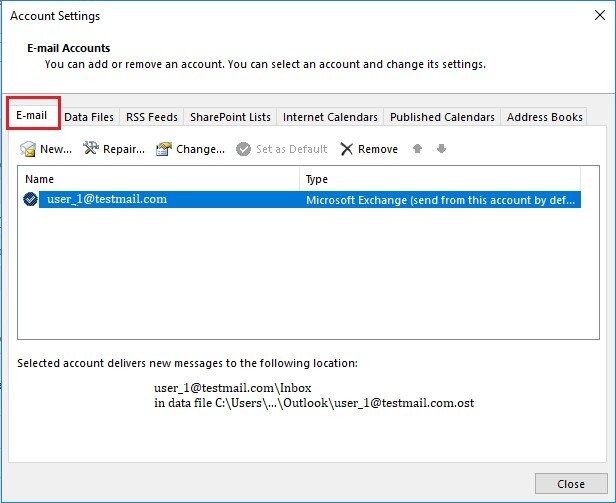
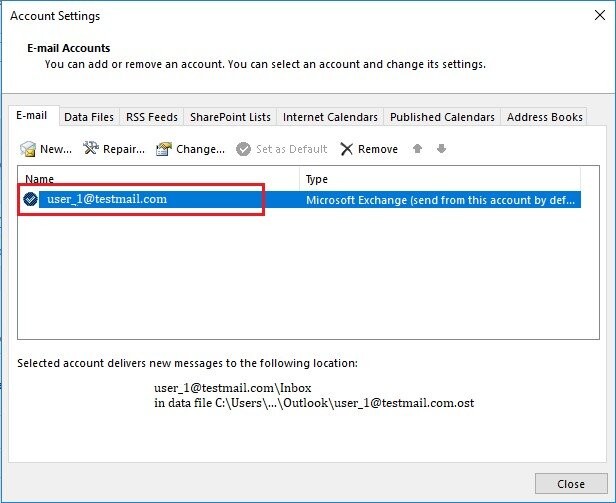
- Double-click your email account to open its settings
- You can then view or change the details as needed
- Inspect and make sure that the incoming and outgoing mail server names are correct
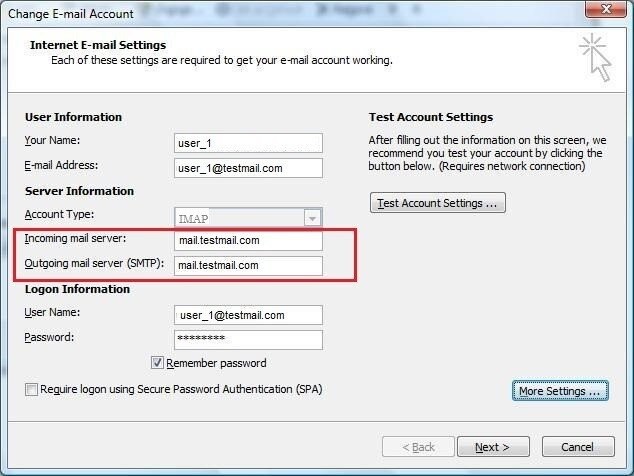
- Next, click on More Settings
- An Internet E-mail Settings dialog box will open
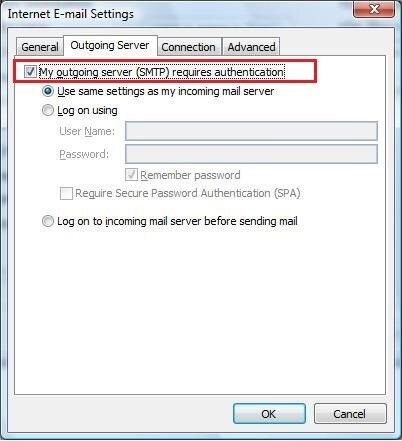
- Browse Outgoing Server tab
- Make sure that the ‘My outgoing server (SMTP) requires authentication’ checkbox is checked
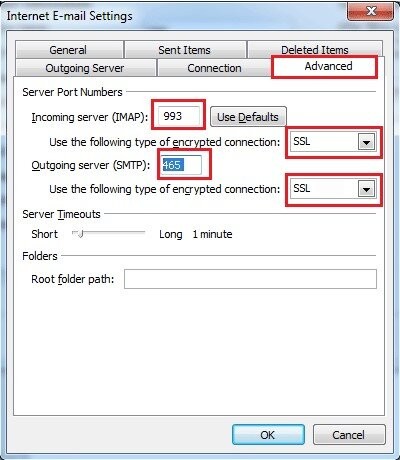
- Click on the Advanced tab to open the settings
- Check that the incoming and outgoing port numbers and SSL settings are correct, as shown below
- Click OK and exit all the open windows
- Restart Outlook, validate if the issue is resolved
Method 3: Fix the Damaged PST Using ScanPST.exe: One of the primary causes of Outlook Fatal Error: 80040900 is a damaged PST. The user can fix the issue by employing built-in ScanPST. This functionality runs multiple scans. First, it diagnoses the issue. After this, this utility fixes the issue.
Follow the below steps:
- Discover the utility on the following locations:
| Version | Location |
| Office 365\2019\2016: | –For 64-bit Outlook C:\Program Files\Microsoft Office\Office16
–For 64-bit Outlook C:\Program Files\Microsoft Office\root\Office16 –For 32-bit Outlook C:\Program Files(x86)\Microsoft Office\root\Office16 –For 32-bit Windows C:\Program Files (x86)\Microsoft Office\Office16 |
| Office 2013: | –For 64-bit Windows: C:\Program Files\Microsoft Office\root\office15
–For 32-bit Windows: C:\Program Files (x86)\Microsoft Office\root\office15 |
- So, the user has discovered the utility. Now it is the time to close all active applications & processes, and wait.
- Now click Windows + R keys to browse the ‘Run’ dialogue box.
- After this action, type %programfiles%/Microsoft Office/ in it. Hit the Enter key.
- Select the targeted PST file.
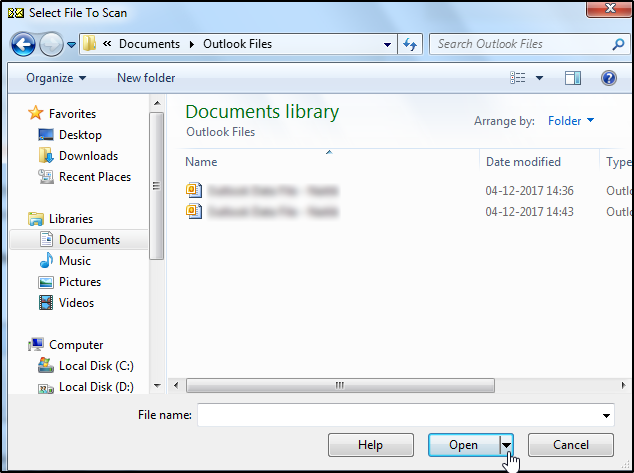
- Start the file scan process.
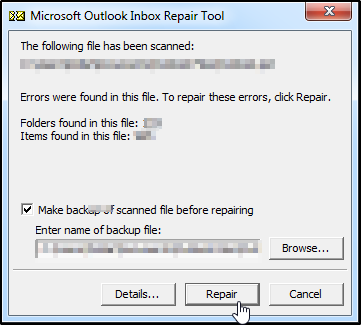
- This utility will highlight errors and inconsistencies in the Outlook data file (.pst). Press the ‘Repair’ button to start the process.
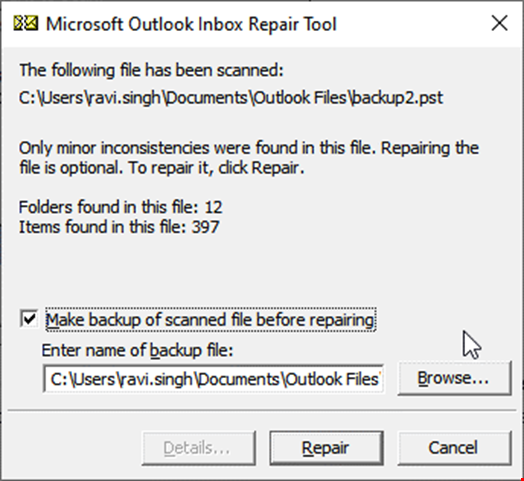
- Select the option to create the backup of the original file. Also tell the path where you want to save this backup file.
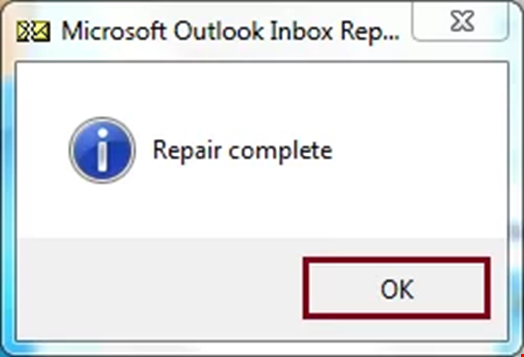
- After the completion of the repair process, check whether all email messages and other mailbox data are in order like before.
What If ScanPST Fails?
Yes, ScanPST can fail. You heard it right. It may fail to fix severe PST corruption issues. This is because this utility is developed to debug some popular scenarios. If the corruption level is critical, it may struggle to fix the issue. Similarly, this utility may crash while trying to fix an oversized PST. ‘So, what to do now’ is what every user wants to ask. To move out from this quagmire, the user needs to employ a specialized PST repair tool. Such tools utilize advanced algorithms. Tools like Stellar Repair for Outlook can debug severe corruption scenarios. This software is applauded for its quick repair speed. It can fix a damaged PST of any size.
Why Experts Recommend Stellar Repair for Outlook?
–Quick conversion speed
— Friendly GUI and easy conversion process
— The software maintains the original file structure and hierarchy
— The software shows a preview of your mailbox data
— Allows export in multiple file formats (EML, MSG, RTF, etc)
Conclusion:
In the above guide titled “How to Fix “Fatal Error: 80040900” In MS Outlook During Usage of ScanPST.exe,” we delve beneath the surface to unearth the causes of Outlook Send-Receive Error. We have also explored its consequences. Besides network issues and misconfigured ports, this error is caused by a corrupt PST file, which is a data file used by Microsoft Outlook to store emails, contacts, and other information. Users can attempt to fix the issue using ScanPST. But this built-in functionality is perfect for resolving minor issues, like header corruption or small structural issues. It may fail to fix complex scenarios. In such a case, only an advanced PST Repair Tool can work. For data safety and quick repair, users are strongly advised to use a tool like Stellar Repair for Outlook. This software is quick and safe. It can perform a deeper, more thorough scan. It doesn’t hamper the hierarchy and file structure. Additionally, it has the ability to restore permanently deleted email messages.

Tech Buzz Info Provides the Better Information on latest and trending technologies across the world. we also concentrate on the Business Trends, Marketing Trends, Gadget releases and many more trending topics